Caleb Foster
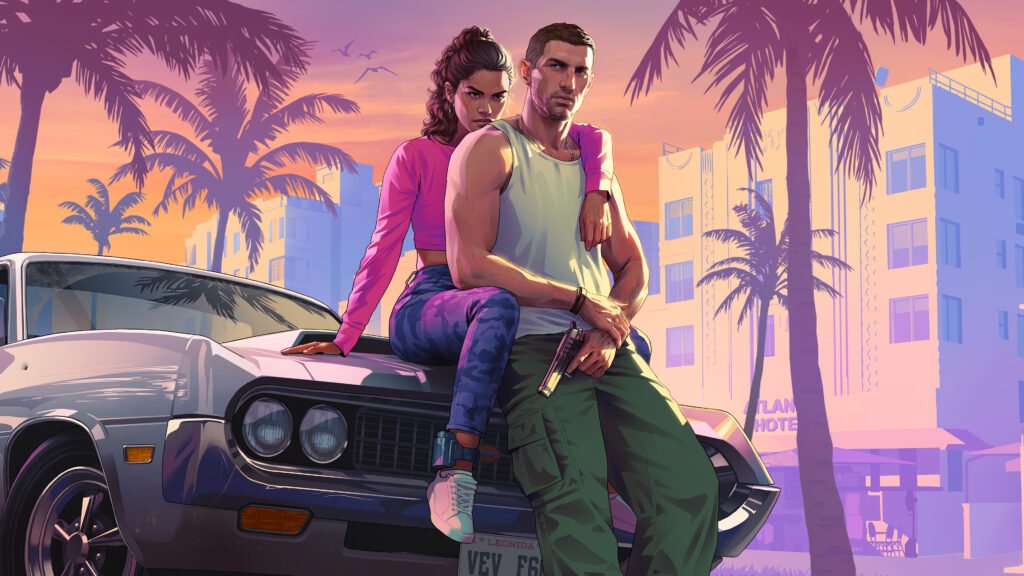
GTA 6 camera settings can make a huge difference to how you explore Vice City, drive through Leonida, aim weapons, and enjoy the game’s cinematic world. Although GTA 6 does not offer a dedicated cockpit camera for normal driving at launch, players can customize camera height, follow speed, camera shake, and several vehicle camera options to create a more immersive experience. This guide covers the best camera settings, how to change camera views, how to use cinematic mode, and what you need to know about cockpit view in GTA 6.
Updated: November 21, 2026
Quick answer
- GTA 6 has three standard camera views for vehicles.
- Hold Down on the D-pad to open the camera menu and cycle through views.
- You can customize camera height and follow speeds in Settings.
- There is no standard cockpit or full first-person driving camera available at launch.
- Cinematic camera mode is available for vehicles and exploration.
- Camera Shake and Camera Bob can be adjusted for a more comfortable experience.
- Phone Display can be changed to First Person for a more immersive phone interaction.
In this article
How Do GTA 6 Camera Views Work?
GTA 6 offers multiple third-person camera perspectives that allow you to change how close or far the camera sits behind Jason, Lucia, or your vehicle. These options are useful for driving, exploring, combat, and capturing cinematic moments.
The camera system is designed around adjustable positioning rather than a traditional first-person driving perspective. Players can switch between camera presets during gameplay and customize additional camera behavior through the Settings menu.
According to launch-version gameplay observations, the available vehicle perspectives primarily change the distance and position of the camera behind your vehicle. They do not provide a fully modeled driver’s-seat view with a dashboard and steering wheel.
For the latest official game information, visit the official Rockstar Games GTA VI website.
What Are the Best GTA 6 Camera Settings?
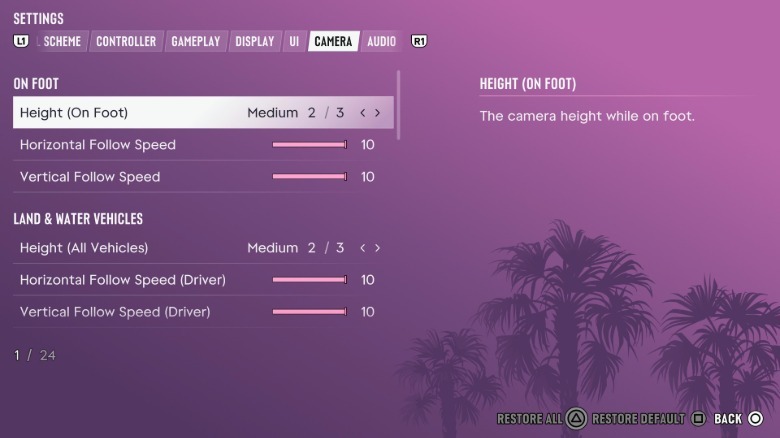
The best GTA 6 camera settings depend on whether you are driving, exploring on foot, fighting enemies, or recording gameplay. For everyday gameplay, a higher camera position, comfortable follow speeds, and reduced camera shake provide a good balance between visibility and immersion.
These are recommended starting settings rather than mandatory values. Adjust them according to your personal preference and controller sensitivity.
| Setting | Recommended choice | Why |
|---|---|---|
| Height (On Foot) | Medium or High | Improves visibility while exploring |
| Horizontal Follow Speed | Medium | Balances camera movement |
| Vertical Follow Speed | Medium | Prevents excessive camera movement |
| Height (All Vehicles) | Medium or High | Provides a wider road view |
| Horizontal Follow Speed (Driver) | Medium | Creates smoother driving camera movement |
| Vertical Follow Speed (Driver) | Medium | Reduces sudden camera adjustments |
| Camera Shake | Off if preferred | Reduces movement during gameplay |
| Camera Bob | Low to Medium | Reduces excessive movement while walking |
| Phone Display | First Person | Provides a more immersive phone experience |
| Cinematic Camera | Use when exploring | Creates cinematic driving shots |
Best camera settings for driving
For regular driving, choose Medium or High vehicle camera height. A higher camera makes it easier to see traffic, upcoming turns, intersections, and obstacles in front of your car.
Keep driver follow speed at a comfortable level. If the camera constantly swings behind the vehicle whenever you turn, lowering follow speed can make driving feel smoother.
Best camera settings for walking
For exploring Vice City on foot, a Medium or High camera position gives you a wider view of your surroundings. Medium is a good starting point if you want Jason or Lucia to remain prominent on the screen while still seeing nearby pedestrians and streets.
Players who prefer a cinematic experience can lower the camera height and reduce follow speed for a more personal perspective.
Best camera settings for screenshots and videos
For screenshots, cinematic clips, and social media videos, experiment with camera height and cinematic mode. A lower camera position can make vehicles appear more dramatic, while a higher perspective can showcase the streets and scenery.
How to Change Camera View in GTA 6
You can change camera views in GTA 6 without opening the full Settings menu. The quick camera menu allows you to switch between available perspectives while walking or driving.
Change camera view on PS5
- Start playing GTA 6 and enter a vehicle or explore on foot.
- Hold Down on the D-pad to open the camera adjustment menu.
- Press Square to cycle through the available camera views.
- Release the D-pad when you have selected your preferred view.
- Repeat the process whenever you want to change perspectives.
Change camera view on Xbox Series X|S
- Enter a vehicle or start exploring on foot.
- Hold Down on the D-pad.
- Press X to cycle between the available camera views.
- Release the D-pad to return to gameplay.
The camera menu also provides access to cinematic camera functionality. Depending on the situation, additional navigation or marker options may appear in the same menu.

Does GTA 6 Have Cockpit View?
No, GTA 6 does not currently offer a standard cockpit view for normal vehicle driving at launch. The available vehicle camera perspectives are third-person views positioned around the vehicle, rather than a traditional first-person view from inside the driver’s seat.
This means you cannot normally drive while looking directly through the windshield at the dashboard, steering wheel, and interior of the vehicle using a dedicated cockpit camera option.
Although GTA 6 includes limited first-person interactions, such as phone display options and certain aiming or inspection perspectives, these do not function as a complete first-person driving mode.
Players hoping for a cockpit camera should keep an eye on future official updates. Rockstar Games has not officially announced a dedicated cockpit camera feature.
Important
Videos showing unusual first-person driving perspectives may use glitches, temporary camera tricks, or other methods rather than a standard camera setting. These methods can change or stop working after updates.
How to Use Cinematic Camera in GTA 6
Cinematic camera mode is useful when you want GTA 6 to look more like a movie. It can automatically change camera angles during driving and create dramatic views of vehicles, roads, and the surrounding environment.
How to activate cinematic camera
- Get into a vehicle.
- Hold Down on the D-pad to open the camera menu.
- Select the cinematic camera option when it appears.
- Drive around Vice City or Leonida to experience the changing camera angles.
- Return to your normal camera view when you need more precise driving control.
Cinematic camera is particularly useful for recording gameplay clips, enjoying scenic roads, and creating vehicle videos. However, it is not the best option for difficult races, traffic-heavy roads, or missions requiring precise steering because the changing angles can make it harder to judge your position.
For more GTA 6 gameplay guides, check out our Girls’ Trip Mission walkthrough to explore one of Lucia’s missions.
How to Make GTA 6 Camera Settings More Comfortable
If the camera movement feels uncomfortable, GTA 6 includes several options that can help reduce excessive motion. These settings are especially useful during long play sessions, driving, running, and combat.
Turn off camera shake
Camera Shake adds movement to the camera during certain gameplay situations. If you prefer a more stable view, switch Camera Shake off through the Camera settings menu.
Reduce camera bob
Camera Bob controls the camera’s movement while walking, running, or swimming. Reducing this setting can make movement feel less distracting and provide a steadier view.
Adjust follow speed
Horizontal and Vertical Follow Speed determine how quickly the camera moves back behind your character or vehicle. If the camera feels too aggressive, lower these values gradually until movement feels comfortable.
Change camera height
Camera height can also affect how comfortable the game feels. A higher camera may reduce the amount of movement you notice on the screen, while a lower camera can make the action feel closer and more immersive.
For players who prefer a more cinematic experience, adjusting these GTA 6 camera settings can help create smoother gameplay without sacrificing visibility.
Frequently Asked Questions
How do you change camera view in GTA 6?
Hold Down on the D-pad and press Square on PS5 or X on Xbox to cycle between available camera views.
Does GTA 6 have a cockpit camera?
No standard cockpit camera is available for normal driving at launch. The available vehicle perspectives use third-person camera positions.
What is the best camera setting for driving in GTA 6?
Medium or High vehicle camera height with comfortable follow speeds is a good starting point for driving and navigating traffic.
Can you change camera height in GTA 6?
Yes. You can adjust Height (On Foot) and Height (All Vehicles) through the Camera tab in Settings.
How do you turn off camera shake in GTA 6?
Open Settings, go to the Camera tab, and turn Camera Shake off under the Comfort section.
Can you use cinematic camera while driving?
Yes. Open the camera menu while driving and select the cinematic camera option to experience changing cinematic perspectives.
Does GTA 6 have first-person mode?
There is no standard full first-person gameplay mode available at launch. Some limited first-person interactions are available, but they are not equivalent to a complete first-person camera mode.
GTA 6 camera settings allow you to customize the way you experience Vice City, whether you are exploring on foot, driving sports cars, or capturing cinematic footage. For the best everyday experience, start with Medium or High camera height, comfortable follow speeds, and reduced camera shake. While a dedicated cockpit camera is not currently available, the game’s camera customization options still provide plenty of flexibility for players who want a smoother, more immersive experience.
Continue exploring Leonida with our GTA 6 Safehouse Guide to learn about locations and features, or check out our GTA 6 Sex & Romance Guide for more character-related gameplay details.
Sources
- Rockstar Games – Official GTA VI Website
- Rockstar Games Newswire – Official Announcements
- Rockstar Games Support
- Engadget – Supplied GTA 6 Camera Image
- ViceManual – Supplied GTA 6 Controls Image
Camera settings and control instructions in this guide are based on launch-version gameplay observations and reporting. Rockstar’s official pages are linked for official game announcements and support; they do not independently confirm every camera setting described here.
Sunstrip Gaming is an independent, unofficial fan publication and is not affiliated with Rockstar Games or Take-Two Interactive.