
 Caleb Foster
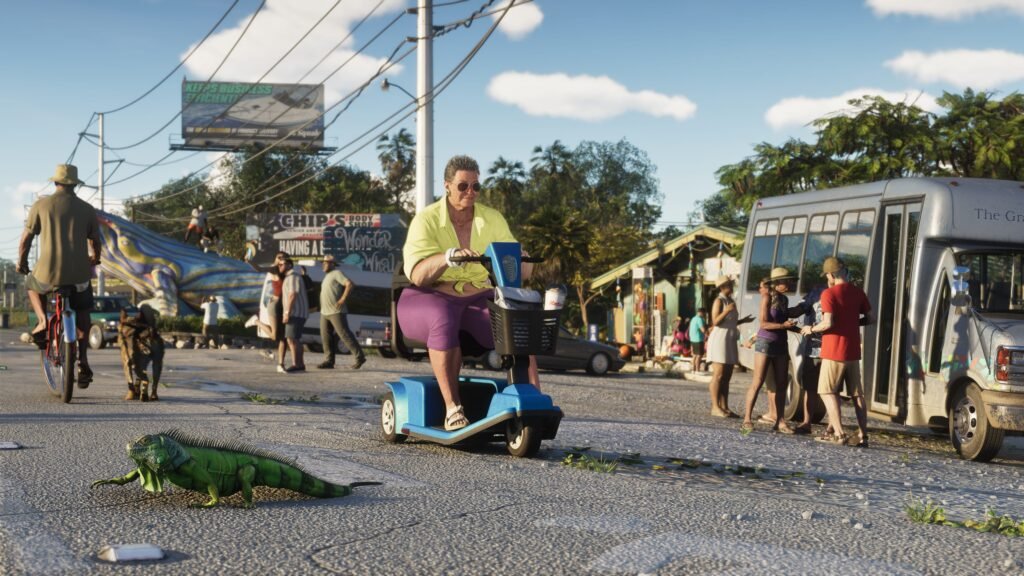
GTA 6 not working on PS5 or Xbox? Whether the game refuses to launch, crashes during gameplay, gets stuck on the loading screen, or fails to download, several troubleshooting steps can help you identify the problem. Since its November 19, 2026 launch, players have reported technical issues, including crashes, missing textures, and characters falling through the map. This guide covers practical GTA 6 fixes for PlayStation 5 and Xbox Series X|S, including installation errors, storage problems, freezing, and lost progress.
Updated: November 20, 2026
Quick answer
- Restart your PS5 or Xbox Series X|S and check for available game and system updates.
- Make sure you have enough storage. Rockstar lists up to 212 GB of required space, depending on your device.
- Check PlayStation Network or Xbox network status if the game has account, download, or connection errors.
- On PS5, try restoring licenses or clearing the system cache through Safe Mode.
- On Xbox, try a complete power cycle to clear temporary system cache.
- Avoid deleting saved game data or performing a factory reset as your first troubleshooting step.
In this article
Why Is GTA 6 Not Working?
There isn’t one single reason GTA 6 may stop working. The problem could be related to your console software, an incomplete installation, insufficient storage, account permissions, corrupted temporary files, or an issue within the game itself.
Some players also reported technical problems shortly after launch. These reports include crashes, characters falling through the map, missing textures, clipping, and occasional gameplay interruptions. These are player-reported problems and should not be treated as confirmed issues affecting every console.
Here are the most common symptoms and where to start:
| Problem | First troubleshooting step |
|---|---|
| Game won’t launch | Check ownership, system updates, and game installation. |
| Stuck on loading screen | Restart the game and power cycle the console. |
| Download not starting | Pause and resume the download, then check storage. |
| Game keeps crashing | Install available updates and clear temporary cache. |
| Game freezes during missions | Restart the checkpoint or reload the mission. |
| Purchase or license error | Verify the account that owns the game and restore licenses on PS5. |
| Missing progress | Check saved data and synchronization before making changes. |
| Error code appears | Use the official PlayStation or Xbox error-code support page. |
Quick Fixes to Try First
Before changing advanced console settings or reinstalling the game, try these basic troubleshooting steps. They can help identify whether GTA 6 not working is caused by a temporary console, installation, or network problem.
1. Restart your console
Completely close GTA 6 and restart your PS5 or Xbox. Avoid simply switching between games or leaving the title suspended in the background. A fresh restart can help resolve temporary software problems.
2. Check for game updates
Make sure you are running the latest available GTA 6 update. An incomplete or outdated installation can cause compatibility and gameplay problems.
On PS5, highlight GTA 6 on the home screen, press the Options button, and select Check for Update. On Xbox, open My games & apps and check the available game updates.
3. Check available storage
Storage is important when downloading, installing, and updating large games. Rockstar’s official installation requirements state that GTA 6 requires up to 212 GB of available space, depending on the device.
Check your available storage before attempting another download or installation. Keep additional space available for future updates rather than filling the entire drive.
4. Check platform service status
Some errors are related to your console account or platform services rather than the GTA 6 installation itself.
- PS5: Check the PlayStation Network status page.
- Xbox: Check the Xbox network status page.
- Rockstar: Visit Rockstar Games Support for GTA VI.
Check these services before reinstalling the game. Reinstalling will not resolve a temporary platform service interruption.
GTA 6 Not Working on PS5: How to Fix It
If GTA 6 not working on your PS5 is the main problem, PlayStation provides a dedicated troubleshooting page for the game. It covers download failures, launch errors, account permissions, storage, and console cache problems.
1. Fix GTA 6 download and installation problems
If the game download is stuck or refusing to continue, try restarting it through the Downloads/Uploads section.
- Open the PS5 Control Center.
- Select Downloads/Uploads.
- Highlight the GTA 6 download.
- Select Pause and wait briefly.
- Select Resume to restart the download.
- If it still fails, select Cancel and Delete.
- Open your Game Library and download GTA 6 again.
Before downloading again, check that your PS5 has enough free storage and that your internet connection is working properly.
2. Restore your PlayStation licenses
If GTA 6 is showing a lock icon, saying you do not own the game, or refusing to launch despite a successful purchase, restoring your licenses may help.
- Open Settings on your PS5.
- Select Users and Accounts.
- Go to Other.
- Select Restore Licenses.
- Choose the relevant licenses and confirm.
- Restart GTA 6 and check whether the problem is resolved.
Also make sure you are signed in to the PlayStation account used to purchase or redeem the game. If another account owns GTA 6, check that Console Sharing and Offline Play is enabled on your PS5.
3. Clear PS5 cache and rebuild the database
Temporary system files can sometimes cause loading and software problems. PlayStation recommends using Safe Mode to clear the cache and rebuild the database when appropriate.
- Turn off your PS5 completely.
- Press and hold the power button until you hear the second beep.
- Connect your controller using a USB cable.
- Press the PS button to enter Safe Mode.
- Select Clear Cache and Rebuild Database.
- Choose Clear System Software Cache first.
- Restart your console and test GTA 6.
If the issue continues, you can return to Safe Mode and consider Rebuild Database. Follow PlayStation’s instructions carefully and do not select Reset PS5 as a routine cache-clearing step.
PS5 troubleshooting tip
Try the download, account, and license checks before using Safe Mode. PlayStation’s dedicated GTA VI troubleshooting page provides the recommended order and additional console support.
GTA 6 Not Working on Xbox: How to Fix It
If GTA 6 not working on your Xbox Series X or Series S is the problem, begin with the game installation, available storage, console updates, and temporary system cache.
1. Restart your Xbox completely
A complete power cycle is different from simply entering Sleep mode. It shuts down the console and clears temporary system cache files.
- Shut down your Xbox Series X or Series S completely.
- Unplug the console’s power cable.
- Leave the console unplugged for two minutes.
- Reconnect the power cable.
- Switch on your Xbox and launch GTA 6 again.
Rockstar recommends this method for clearing the Xbox Series X|S system cache. According to Rockstar, the procedure does not affect saved game data, although it resets brightness and language settings.
2. Check Xbox game and system updates
An outdated console or incomplete GTA 6 update can cause problems when starting the game.
- Press the Xbox button on your controller.
- Open Profile & system and select Settings.
- Navigate to System and check for console updates.
- Install any available update.
- Open My games & apps and check for GTA 6 updates.
- Restart the console after installation.
3. Check your Xbox storage
Insufficient storage can prevent GTA 6 from downloading, installing, or updating correctly. Open Settings and check the available space under System and Storage devices.
Free up space by uninstalling games you no longer play. Avoid deleting GTA 6 saved data while troubleshooting an installation problem.
4. Check Xbox error codes
If your Xbox displays an error code when launching GTA 6, do not guess what the code means. Rockstar directs Xbox players to Microsoft’s official error-code troubleshooting service.
Open the Xbox Error Code Search Guide, enter the exact error code, and follow the instructions for your console.
Important Xbox warning
Do not choose Delete Everywhere when managing saved game data. This can permanently remove your saved progress. Also, do not perform a factory reset unless Xbox Support recommends it after other troubleshooting steps.
How to Fix GTA 6 Crashes, Freezes, and Loading Problems
Sometimes GTA 6 opens normally but stops responding during gameplay. You might experience a frozen screen, a sudden return to the console home screen, missing textures, or an issue that occurs repeatedly during a particular mission.
Try the following steps in order:
- Close and restart the game: Completely quit GTA 6 rather than leaving it suspended.
- Restart the console: Perform a full restart to clear temporary system problems.
- Install updates: Check for any available GTA 6 and system software updates.
- Clear temporary cache: Follow the appropriate PS5 or Xbox instructions above.
- Restart the mission: If your character becomes stuck or the mission stops responding, try restarting the checkpoint or reloading the mission.
- Contact support: If the same crash continues, report the problem with your console model, error code, and the situation in which it happens.
What if the character falls through the map?
Some players reported characters falling through the environment shortly after launch. This is different from a normal console installation problem and may indicate an in-game bug.
If this happens, try restarting the checkpoint or reloading a previous save. If the same problem repeatedly occurs in the same location or mission, report it to Rockstar Support instead of repeatedly reinstalling the entire game.
What to Do If GTA 6 Loses Your Progress
One of the most frustrating situations is losing progress after a crash or unexpected console shutdown. Players have also reported save-related problems during the game’s launch period.
If GTA 6 not working has resulted in missing progress, avoid immediately deleting your saved data or reinstalling the game.
- Restart your console and reconnect to your platform account.
- Allow any available saved-data synchronization to finish.
- Check whether your previous save is still available in the game’s load menu.
- Do not choose Delete Everywhere or manually overwrite a potentially newer save.
- Contact Rockstar or platform support if the save is missing or appears corrupted.
For future sessions, use available manual saving options and keep more than one save slot where the game allows it. This provides another recovery point if a particular mission or save becomes unusable.
Protect your progress
Never clear local saved games or delete cloud data just to fix a loading issue unless official support specifically recommends it. Make sure your latest progress has synchronized before changing saved-data settings.
Frequently Asked Questions
Why is GTA 6 not working on my PS5?
Possible reasons include outdated system software, an incomplete game installation, insufficient storage, account-license problems, or temporary software issues. Start by checking for updates, available space, and game ownership.
Why is GTA 6 not working on Xbox Series X or Series S?
The issue may be caused by temporary system cache, incomplete updates, insufficient storage, or an installation error. Try restarting the console, clearing the cache, and checking for updates.
How much storage does GTA 6 require?
Rockstar Games lists up to 212 GB of available storage depending on the device. Check your console’s displayed installation requirement before downloading.
What should I do if GTA 6 keeps crashing?
Close the game, restart your console, check for updates, and clear temporary system cache. If crashes continue, report the exact error and circumstances to Rockstar Support.
Is GTA 6 currently experiencing widespread server problems?
A console or platform network problem can prevent sign-in, downloading, or license verification. Check PlayStation Network and Xbox network status before assuming Rockstar’s game services are down.
Will reinstalling GTA 6 fix every problem?
No. Reinstalling may help with corrupted or incomplete installation files, but it will not necessarily fix console hardware issues, platform outages, or bugs inside the game. Keep reinstalling as a later troubleshooting option.
Where can I report GTA 6 bugs?
You can visit the official Rockstar Games Support website and submit a request with your console model, error code, and a description of the problem.
So, is GTA 6 not working because of your console or the game itself? Start with the simplest checks: restart your console, install updates, verify storage, and check platform services. Use the specific PS5 or Xbox troubleshooting steps before considering a complete reinstall.
If you are exploring more GTA 6 features, read our GTA 6 First-Person Mode and Camera Guide to learn about different camera perspectives. You can also check our GTA 6 Voice Actors and Cast List for details about Jason, Lucia, and the cast.
Sources
- Rockstar Games – Grand Theft Auto VI Support
- Rockstar Games – GTA VI Error Troubleshooting
- Rockstar Games – GTA VI Installation Requirements
- Rockstar Games – Clearing the Cache on Xbox Series X|S
- PlayStation – Grand Theft Auto VI Game Troubleshooting
- Moneycontrol – GTA 6 Launch-Day Bug Reports
- Microsoft Xbox – Error Code Search Guide
Note: Launch-day crashes and gameplay bugs are based on player reports and media coverage. They are not presented as an official Rockstar-confirmed list of known issues.






gg